Loxone Lighting Controller: Control Individual Lights with Alexa & Google
A Loxone Lighting Controller groups several light circuits into one block. Out of the box, LoxVoice gives Alexa and Google that whole block as one device — so "lights on" switches the block to its Bright mood rather than turning on one light.
This guide shows you how to split the block into individual lights, decide what to do with the original controller, and use rooms so commands like "Hey Google, lights on" do exactly what you expect.
Watch the Video Guide
Prefer to watch? The video walks through every step below in a few minutes.
Can't see the video? Watch it on YouTube.
✓ No credit card required ✓ No hardware needed ✓ Alexa and Google included
How the Lighting Controller Works by Default
In Loxone Config, a Lighting Controller holds several lighting circuits (downlights, pendants, LED strips and so on) and a set of moods such as Bright and Off. Each mood stores a brightness level for every circuit in the block.
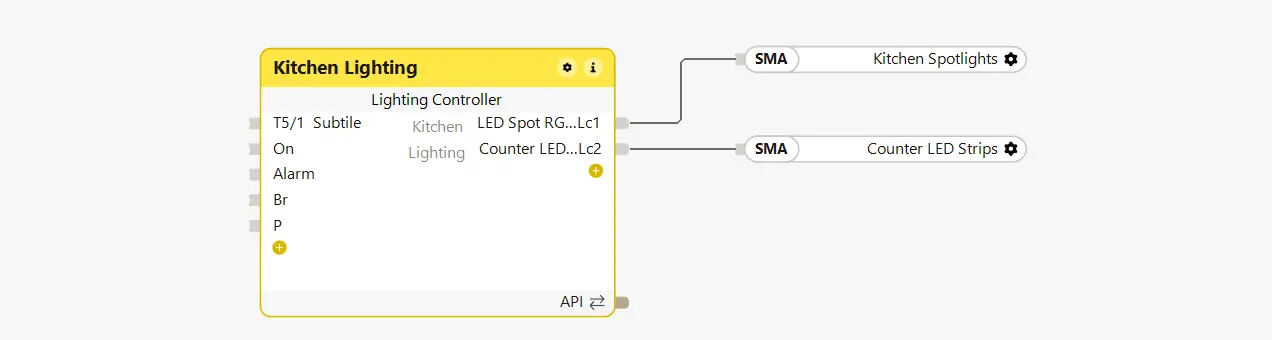
When LoxVoice discovers your Miniserver, each Lighting Controller appears as a single device in Alexa and Google. Its circuits are listed inside it as sub-controls, but they aren't exposed on their own yet.
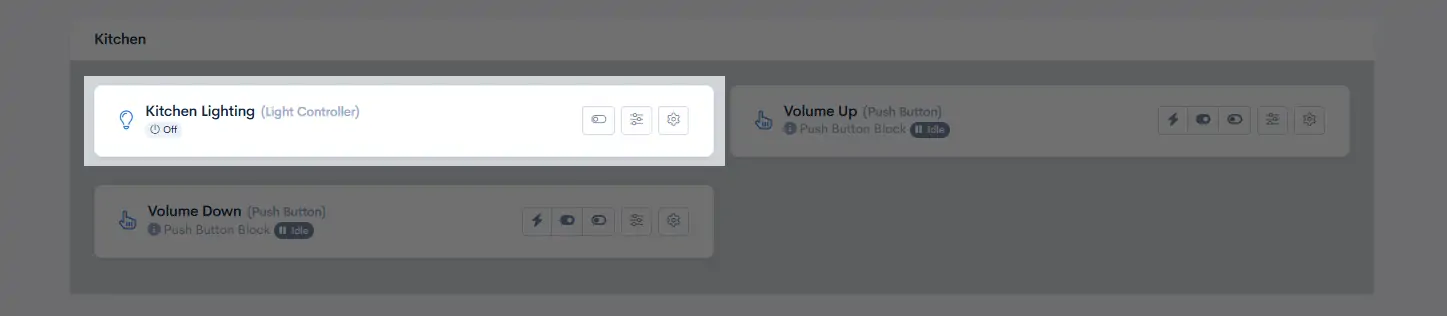
What that means for your voice commands
| You say | What happens |
|---|---|
| "Hey Google, lights on" | The Lighting Controller switches to its Bright mood — every circuit changes to the Bright levels |
| "Alexa, turn on the kitchen lights" | Same — the whole block goes to Bright |
| "Alexa, turn on the island pendants" | ✗ Not recognised — the pendants aren't a device yet |
Why Separate Individual Lights?
Separating turns each sub-control into its own device in Alexa and Google. That gives you:
- Individual control — "Alexa, turn on the island pendants" or "Hey Google, dim the plinth lights to 30%"
- Better names — rename a circuit to something you'd actually say out loud
- Smarter rooms — move a light into the room of the speaker nearest to it
- Predictable "lights on" — context-aware commands turn lights on without forcing a mood change
| Default (not separated) | Separated | |
|---|---|---|
| Devices in Alexa / Google | 1 (the whole block) | 1 per light you separate |
| Control a single light | ✗ | ✓ |
| Dim a single light | ✗ | ✓ (dimmable circuits) |
| Rename / change room per light | ✗ | ✓ |
| Trigger moods by voice | ✓ | ✓ if you keep the controller as a "Mode" device |
Before You Start
You'll need:
- A LoxVoice account with your Miniserver connected (start a free trial if you haven't yet)
- Alexa and/or Google Home already linked to LoxVoice
- A rough plan of which lights you want to control individually, and what you'll call them
How to Separate Sub-Controls: Step by Step
Repeat these steps for every light you want to control on its own. You don't have to separate every circuit — just the ones you'll use individually.
Log in and open Components
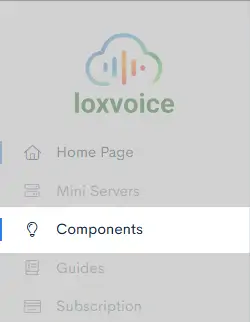
Log in to your LoxVoice dashboard and click Components in the menu. You'll see every Loxone control LoxVoice has found on your Miniserver.
Click the settings cog on the Lighting Controller
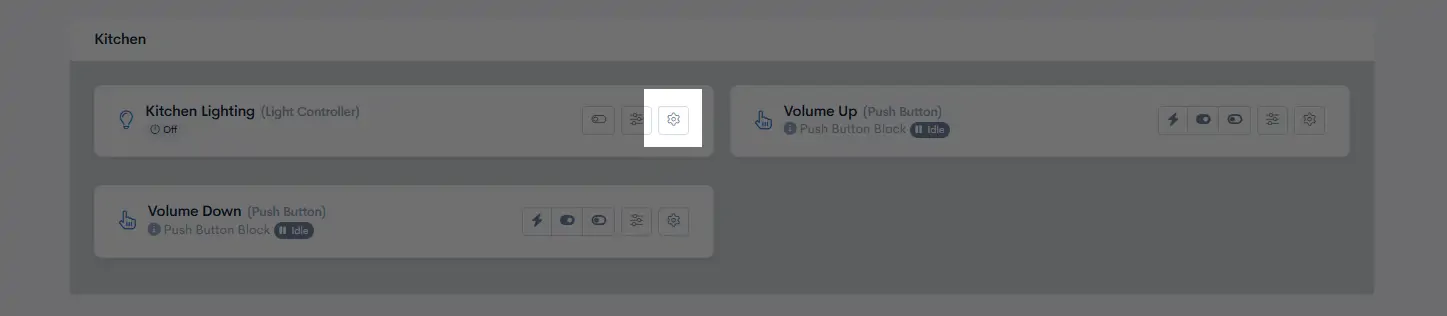
Find the Lighting Controller you want to split (for example Kitchen Lighting) and click its settings cog.
Scroll down to Sub-controls
In the settings panel, scroll down to the Sub-controls section. This lists every lighting circuit inside the block.
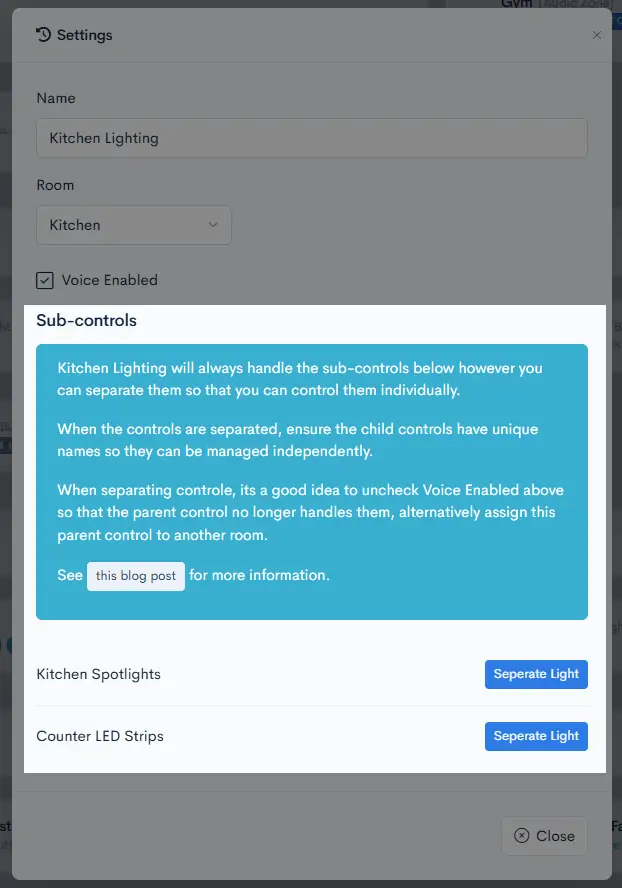
Click Separate
Click Separate next to the light you want to control individually.
Rename it and choose a room (optional)
Give the light a clear, speakable name and, if needed, change its room. Moving a light to a different room is useful in open-plan spaces or homes with several speakers — see Use rooms for better context-aware commands.
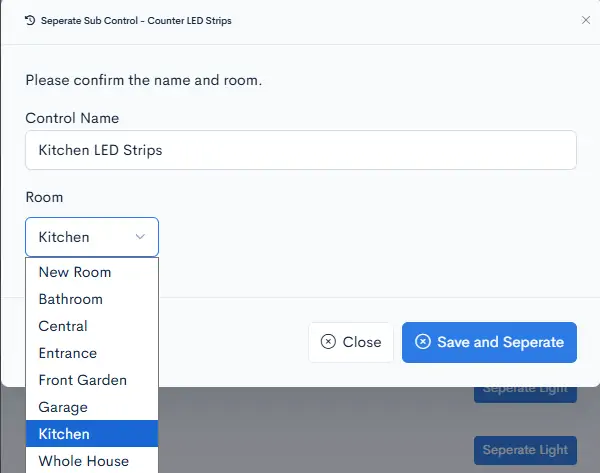
Click Save and Separate
Click Save and Separate. The light now appears as its own component and is available to Alexa and Google as a separate device. Repeat steps 4–6 for any other lights in the block.
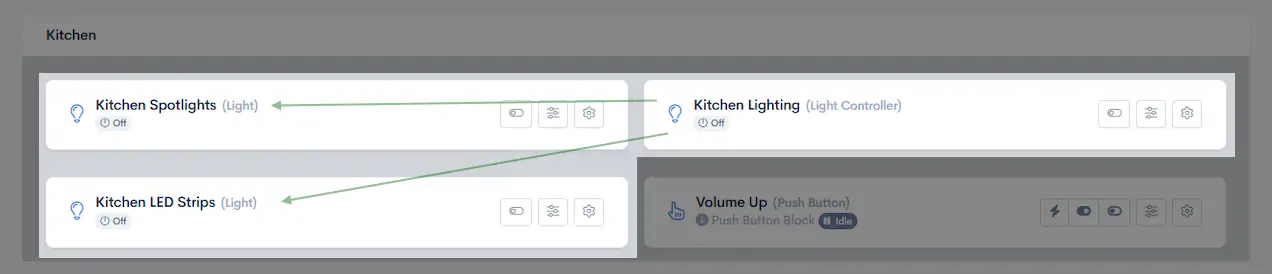
What to Do with the Original Lighting Controller
After separating, the original Lighting Controller is still a voice device. If you leave it as it is, a context-aware command like "Hey Google, lights on" will turn on your separated lights and trigger the controller's Bright mood — which then changes the brightness of every circuit in the block.
You have two options. Pick one:
Option A: Disable it (simplest)
Best if you don't use moods by voice.
- Click the settings cog on the original Lighting Controller.
- Untick Voice Enabled.
- Save.
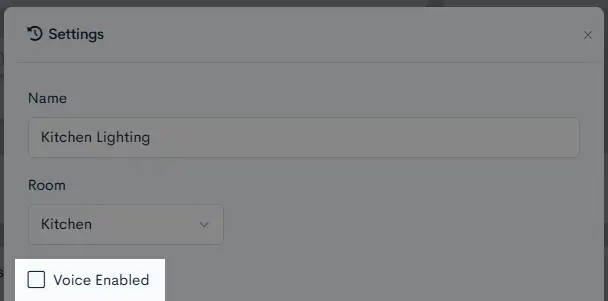
Your separated lights keep working by voice. The Lighting Controller and its moods still work as normal in the Loxone app and from your Loxone switches.
Option B: Rename it and move it to its own room (keep moods)
Best if you still want to trigger moods by voice.
- Click the settings cog on the original Lighting Controller.
- Rename it to something memorable, such as Kitchen Mode.
- Move it to a separate room — one that doesn't contain the speaker you use for that room's lights.
- Save.
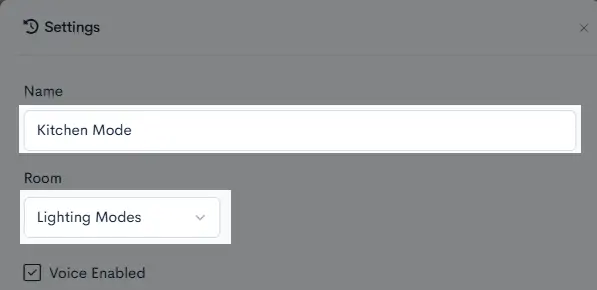
Because it's no longer in the kitchen room, "lights on" in the kitchen won't touch it. You can still call a mood by name:
Say to any Google Home speaker:
- Hey Google, set Kitchen Mode to Bright
- Hey Google, set Kitchen Mode to Off
Which option should I choose?
| A: Disable | B: Rename & move | |
|---|---|---|
| Setup effort | One checkbox | Rename + change room |
| "Lights on" changes moods | ✓ No | ✓ No |
| Trigger moods by voice | ✗ | ✓ "Set Kitchen Mode to Bright" |
| Moods in Loxone app / switches | ✓ Unchanged | ✓ Unchanged |
Not using LoxVoice yet?
Connect your Miniserver in about 5 minutes and control individual Loxone lights with Alexa and Google.
Start Free TrialView Pricing$8.99/month or $89/year after trial · Cancel anytime · Built by Loxone Gold Partners
Use Rooms for Better Context-Aware Commands
Alexa and Google are context aware: say "lights on" to a speaker and it controls the lights in that speaker's room. So the room each light is in decides which speaker controls it.
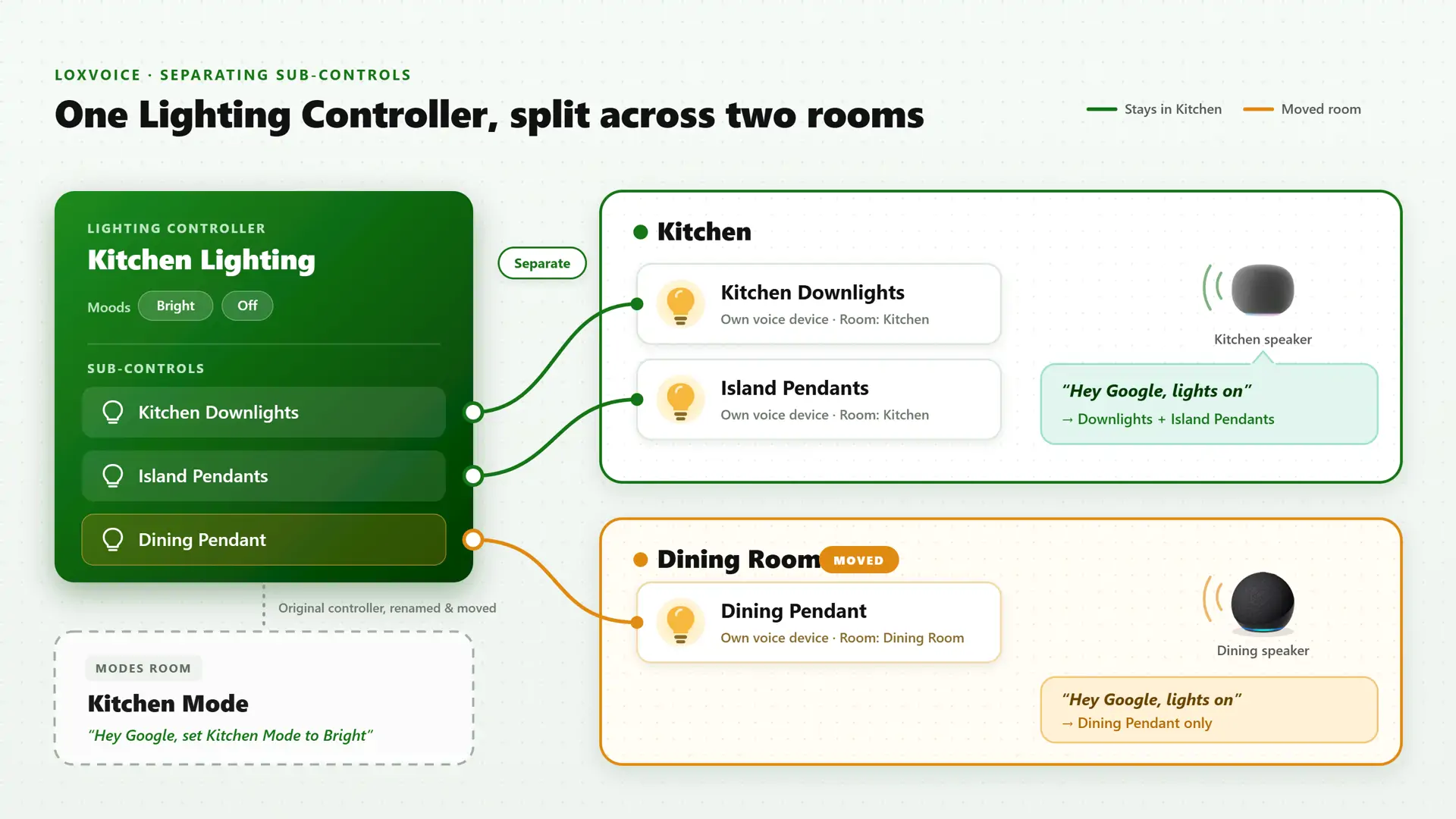
A single Loxone Lighting Controller often covers more than one physical area — an open-plan kitchen, dining and living space, for example. When you separate its lights, you can move each one into the room where it actually is.
Example: open-plan kitchen and dining area
One "Kitchen" Lighting Controller covers the kitchen downlights, the island pendants and the dining table pendant. There's a speaker in the kitchen and another by the dining table.
| Separated light | Room | Controlled by |
|---|---|---|
| Kitchen Downlights | Kitchen | Kitchen speaker |
| Island Pendants | Kitchen | Kitchen speaker |
| Dining Pendant | Dining Room (moved) | Dining speaker |
| Kitchen Mode (original controller) | Modes (its own room) | By name only |
Now "Hey Google, lights on" by the dining table turns on just the dining pendant, and the same command in the kitchen turns on just the kitchen lights.
Voice Commands: Before and After
Before separating
Controls the whole Lighting Controller:
- Alexa, turn on the kitchen lighting → Bright mood
- Alexa, turn off the kitchen lighting
After separating
Say to any Echo device:
- Alexa, turn on the island pendants
- Alexa, dim the plinth lights to 30%
- Alexa, turn off the under-cabinet lights
- Alexa, lights on → just the lights in this room
Say to any Google Home speaker:
- Hey Google, turn on the dining pendant
- Hey Google, set the kitchen downlights to 60%
- Hey Google, lights off → just the lights in this room
- Hey Google, set Kitchen Mode to Bright
Troubleshooting
"Lights on" still changes all my lights to Bright
The original Lighting Controller is still voice enabled in the same room. Either untick Voice Enabled on it (Option A) or rename it and move it to its own room (Option B).
A separated light doesn't appear in Alexa or Google
Say "Alexa, discover my devices" or refresh the Google Home app. Check the light shows as its own component in the LoxVoice dashboard and that it's voice enabled.
The wrong speaker controls a light
Check the room on the light's settings in LoxVoice, then check the room (Google Home) or group (Alexa) in your voice assistant app. The speaker and the light must be in the same room.
The voice assistant mishears a light's name
Rename it to something shorter and more distinctive in LoxVoice, e.g. "Pendants" rather than "Island Pendant Lights 2". Avoid names that sound like another device.
Frequently Asked Questions
By default a Lighting Controller is one device. Turning it on activates its Bright mood, which sets every light in the block to that mood's levels. Separate the sub-controls to control each light on its own.
No. Only separate the lights you want to control individually by voice.
It's recommended, so context-aware commands don't trigger a mood change. Untick Voice Enabled, or rename it (e.g. "Kitchen Mode") and move it to its own room to keep voice control of moods.
No. Separating, renaming and disabling are done in the LoxVoice dashboard and only affect how devices appear to Alexa and Google. Your Lighting Controller, moods and switches work as before.
Yes. Separated lights appear in both, and one LoxVoice subscription covers both platforms. See pricing →
Summary
- Separate the lights you want to control individually: Components → settings cog → Sub-controls → Separate → Save and Separate.
- Rename and re-room them so they match how you speak and where your speakers are.
- Disable the original Lighting Controller, or rename and move it (e.g. "Kitchen Mode") to keep mood control.
Five minutes of setup and "lights on" does exactly what you'd expect in every room.
Control every Loxone light by voice
30-day free trial. No credit card. Alexa and Google Home included.
Start Free TrialView Pricing Plans$8.99/month or $89/year after trial · Cancel anytime · Built by Loxone Gold Partners